

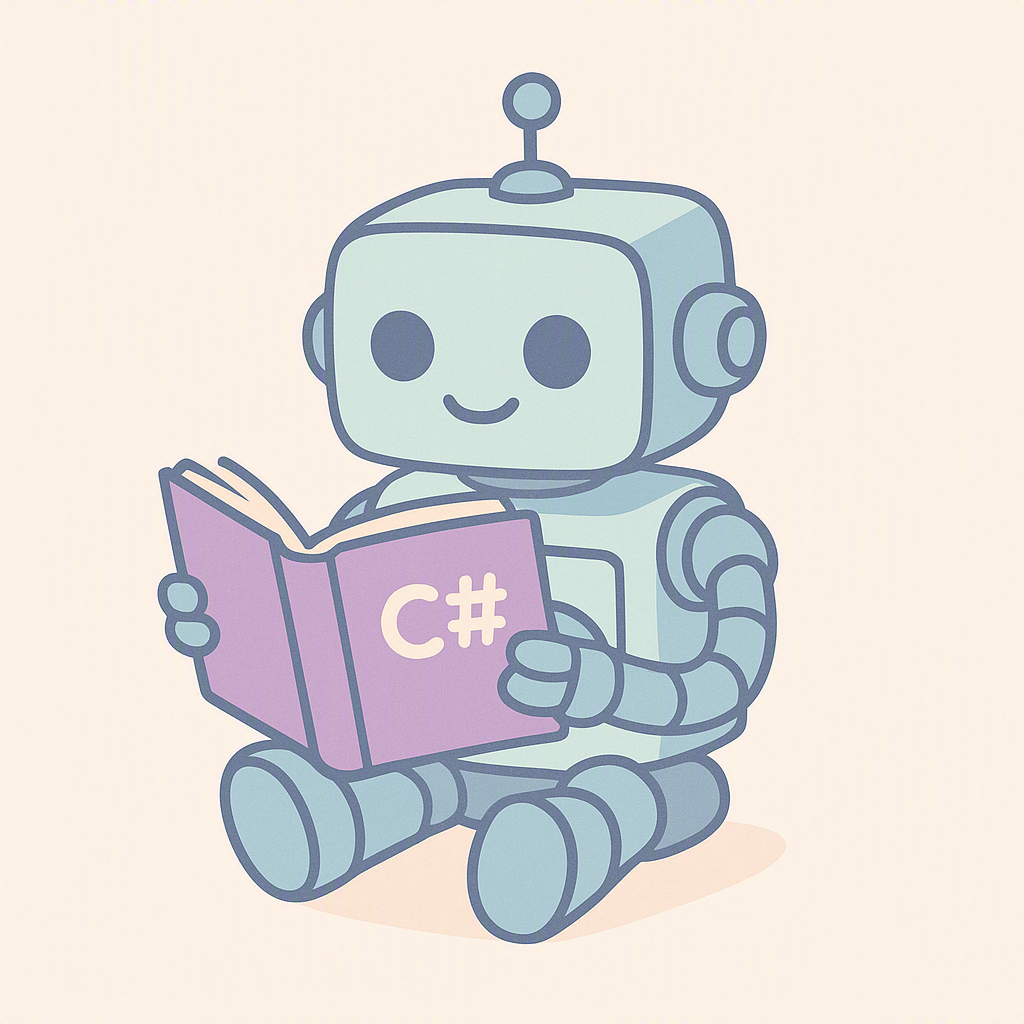
Text is not the only thing models generate. Microsoft.Extensions.AI abstracts
image generation behind IImageGenerator, and if you have internalised
IChatClient you already know the shape: one interface, a provider behind it,
your code in front. This article generates a PNG from a prompt with Azure OpenAI
and shows how you would even test a generated image.
Why cloud here? High-quality text-to-image models are large. There is no convenient local Ollama equivalent for images the way there is for chat, so this article uses Azure OpenAI / Microsoft Foundry. The abstraction is identical regardless of provider — only the registration changes.
The series
| # | Article | What you build |
|---|---|---|
| 1 | Why Microsoft.Extensions.AI exists | The abstraction model, the package map, a local Ollama setup |
| 2 | Your first IChatClient | Streaming chat, DI registration, conversation history, system instructions |
| 3 | Tool calling with AIFunctionFactory | Letting the model call your C# methods |
| 4 | Unit testing and evaluating LLMs | Deterministic tests around a non-deterministic component |
| 5 | Ingesting data with IEmbeddingGenerator | PDF extraction, chunking, vectorisation |
| 6 | Vector stores and completing the RAG loop | VectorStoreCollection, SQLite-vec, similarity search, grounded prompts |
| 7 | Generating images with IImageGenerator | Text-to-image, and how to test a generated image |
| 8 | On-device LLMs with Microsoft.Maui.Essentials.AI | Apple Intelligence, NLEmbeddingGenerator, capability probing |
| 9 | Cloud LLMs: Microsoft Foundry and Amazon Bedrock | Provider selection, credentials, resilience, hybrid routing |
The full source code of this series is available on GitHub.
The service
IImageGenerator centres on GenerateImagesAsync(prompt, options, token). The
wrapper from
ImageGenerationService.cs:
public class ImageGenerationService(IImageGenerator imageGenerator)
{
    readonly IImageGenerator _imageGenerator = imageGenerator;

    public async Task<byte[]?> GenerateImageAsync(
        string prompt, int width = 1024, int height = 1024, CancellationToken token = default)
    {
        var options = new ImageGenerationOptions
        {
            MediaType = "image/png",
            ImageSize = new Size(width, height),
            Count = 1
        };

        var response = await _imageGenerator.GenerateImagesAsync(prompt, options, token);

        // Providers return the image inline as DataContent, or as a UriContent
        // pointing at a hosted file. Handle the inline case here.
        var image = response.Contents.OfType<DataContent>().FirstOrDefault();
        return image?.Data.ToArray();
    }
}
Two details worth knowing:
Countasks for more than one candidate in a single call; the sample takes the first.- Two return shapes. A response’s
Contentsmay hold aDataContent(bytes inline) or aUriContent(a link to a hosted image that expires). Robust code checks for both; the sample handles the inline case and leaves downloading a URI to the caller.
Note the constructor takes IImageGenerator, not any Azure type. Swapping to
OpenAI-direct or another provider is a registration change.
Registration and authentication
From Program.cs:
builder.Services.AddSingleton<IImageGenerator>(_ =>
{
    AzureOpenAIClient azureClient = string.IsNullOrWhiteSpace(apiKey)
        ? new AzureOpenAIClient(new Uri(endpoint), new DefaultAzureCredential())  // Entra ID
        : new AzureOpenAIClient(new Uri(endpoint), new ApiKeyCredential(apiKey)); // key

    // The bridge from the provider SDK's ImageClient to the MEAI abstraction.
    return azureClient.GetImageClient(imageModel).AsIImageGenerator();
});
.AsIImageGenerator() is the adapter that turns Azure’s ImageClient into the
Microsoft.Extensions.AI interface, the same pattern as .AsIChatClient().
On auth: prefer DefaultAzureCredential over a key. It resolves an identity
from az login, a managed identity, environment variables or Visual Studio, so
there is no secret to leak. The sample uses a key only if you explicitly supply
one, handy for a quick local run, but not what you ship.
Generate and save
const string prompt =
    "A friendly robot reading a book about the C# programming language, "
    + "flat vector illustration, soft pastel colours, plenty of negative space.";

var bytes = await service.GenerateImageAsync(prompt);
await File.WriteAllBytesAsync("generated.png", bytes!);
The prompt reads like an art brief on purpose — subject, style, palette, composition. Image models reward specificity: “flat vector illustration, soft pastel colours, plenty of negative space” gets you a usable asset; “a robot” gets you a coin toss.
Setting up Azure
Five steps, in this order. Each one prevents a specific failure later, and the failures do not name the step that caused them — so it is worth doing them in order rather than skipping ahead.
The commands below are Azure CLI and run the same way in PowerShell and in bash. Install the CLI, then sign in:
az login
1. Check the region has an image model
Do this first. Image models exist in far fewer regions than chat models, and a resource created in the wrong region can never generate an image — there is no setting that fixes it, only a new resource somewhere else.
az cognitiveservices model list -l swedencentral --query "[?model.name] | [?contains(model.name, 'gpt-image')].{name:model.name, version:model.version, sku:model.skus[0].name}" -o table
Name              Version     Sku
----------------  ----------  --------------
gpt-image-1       2025-04-15  GlobalStandard
gpt-image-1-mini  2025-10-06  GlobalStandard
gpt-image-1.5     2025-12-16  GlobalStandard
gpt-image-2       2026-04-21  GlobalStandard
Note the exact version string — step 3 needs it.
If the output is empty, that region has no image model. Scan several at once:
foreach ($r in 'westus3','swedencentral','eastus2','polandcentral','uaenorth','uksouth','westeurope') { az cognitiveservices model list -l $r --query "[?model.name] | [?contains(model.name, 'gpt-image')].{region:'$r', name:model.name, version:model.version}" -o tsv }
Regions with no image model simply print nothing. At the time of writing, uksouth and westeurope are among them, while swedencentral, westus3, eastus2, polandcentral and uaenorth all offer the full set.
You can create the resources also in the Azure Portal.
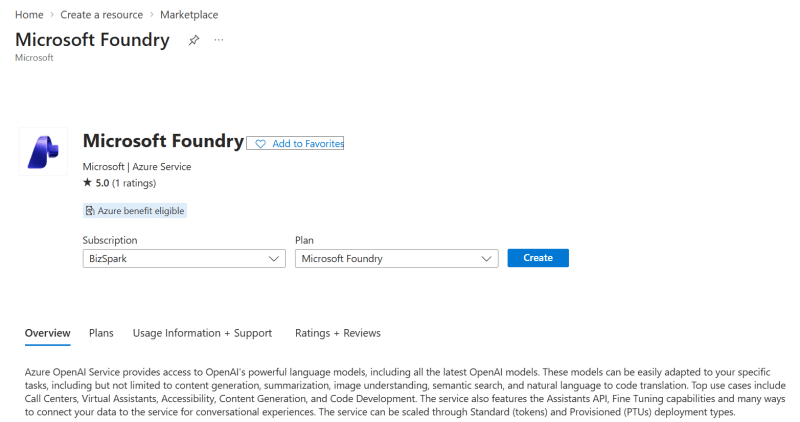
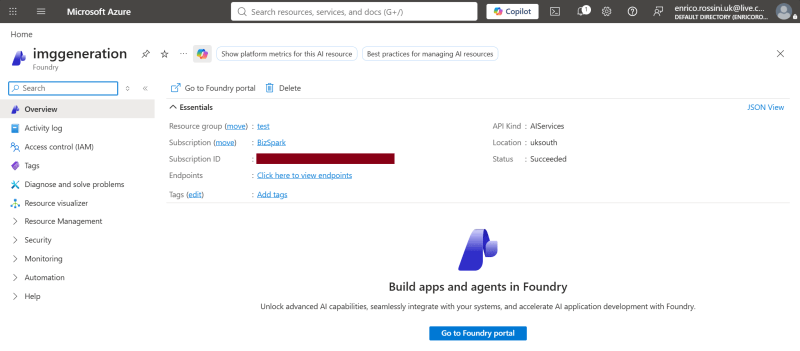
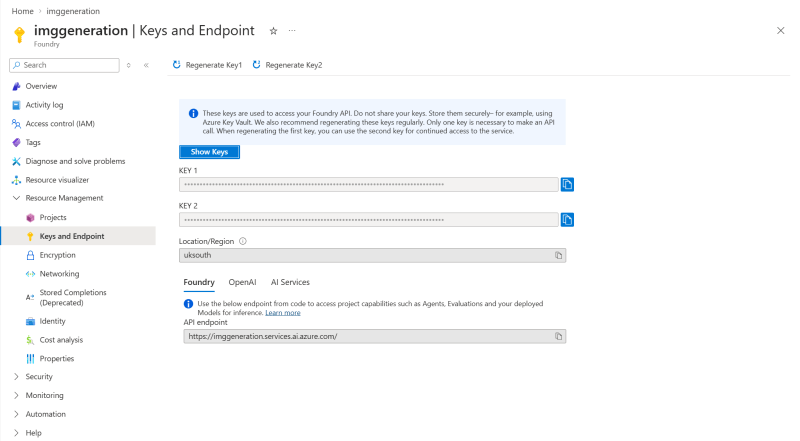
2. Create the resource
An Azure resource is one instance of a service inside your subscription. The endpoint URL is built from the name you choose here, so pick something globally unique.
az group create -n ai-demos -l swedencentral
az cognitiveservices account create -n imggen -g ai-demos -l swedencentral --kind AIServices --sku S0 --custom-domain imggen
--custom-domain is not optional. Without it the resource answers only on a
shared regional host, and sign-in with a Microsoft identity will not work.
--sku S0 is the standard pay-as-you-go pricing tier.
You can create the resources also in the Azure Portal.
3. Deploy the model
Creating the resource does not give you a model. A deployment is one model made available under a name you choose, and that name — not the model name — is what your code asks for.
az cognitiveservices account deployment create -n imggen -g ai-demos --deployment-name gpt-image-1 --model-name gpt-image-1 --model-version 2025-04-15 --model-format OpenAI --sku-name GlobalStandard --sku-capacity 1
Then confirm it is ready. The list command shows deployments that are still being created, so check the state rather than trusting the listing:
az cognitiveservices account deployment show -n imggen -g ai-demos --deployment-name gpt-image-1 --query "{state:properties.provisioningState, model:properties.model.name, version:properties.model.version, sku:sku.name}" -o json
{
  "model": "gpt-image-1",
  "sku": "GlobalStandard",
  "state": "Succeeded",
  "version": "2025-04-15"
}
state must read Succeeded.
In the portal instead. Deployments are managed in Azure AI Foundry, and the Azure portal hands off to it:
- Go to ai.azure.com and pick your resource in the selector at the top right. (Or, from portal.azure.com, open the resource and choose Model deployments — it takes you to the same screen.)
- Deployments → Deploy model → Deploy base model.
- Search for
gpt-image-1, select it, and confirm. - Set the deployment name. This is the string that goes in
AZURE_OPENAI_IMAGE_MODEL, and it is yours to choose — keep it the same as the model name unless you have a reason not to. Set the deployment type to Global Standard. - Deploy. It is usually ready in under a minute, and the deployment page then shows the endpoint and keys.
One thing to watch: the deploy dialog only lists models available in this resource’s region, and it does not say so. Search for a model that is not offered there and you get an empty result with no explanation — which looks exactly like a typo. That is why step 1 comes first.
4. Give your identity permission
Two separate things control access, and it is easy to assume the first implies the second:
- Authentication proves who you are. That is what
az loginandDefaultAzureCredentialdo. - Authorisation decides what you may do. That comes from a role — a named set of permissions attached to a resource. Being the owner of the subscription does not grant it; you must assign it explicitly.
$userId = az ad signed-in-user show --query id -o tsv
$scope = az cognitiveservices account show -n imggen -g ai-demos --query id -o tsv
az role assignment create --assignee-object-id $userId --assignee-principal-type User --role "Cognitive Services User" --scope $scope
{
  "principalId": "aaaaaaaa-bbbb-cccc-dddd-eeeeeeeeeeee",
  "principalType": "User",
  "roleDefinitionName": "Cognitive Services User",
  "scope": "/subscriptions/.../resourceGroups/ai-demos/providers/Microsoft.CognitiveServices/accounts/imggen"
}
Two roles can work here, and which one you need depends on the kind of resource:
- Cognitive Services User grants every data operation on the account. It is
the safe choice for a
kind: AIServicesresource, which is what the command in step 2 creates. - Cognitive Services OpenAI User grants only the operations under the
account’s OpenAI area. It is enough for a resource created as
--kind OpenAI, and it is the role most documentation names.
Assignments usually take effect within a minute or two. They are checked by the service on each request, so you do not need to sign in again after making one — just wait and retry.
In the portal instead. Open the resource in portal.azure.com → Access control (IAM) → Add → Add role assignment. Pick the role on the first tab, then on Members choose User, group, or service principal, select your account, and review and assign.
Roles are listed there by name, so this is also the easiest way to see what a resource already grants you: the Check access button on the same page answers “what can this account do here?” directly.
If you would rather not deal with identities at all, skip this step and use a key instead. See Keys: the quick way in below.
5. Read the endpoint from the resource
Do not type the endpoint from memory. Ask the resource what it is:
az cognitiveservices account show -n imggen -g ai-demos --query "{kind:kind, location:location, endpoint:properties.endpoint}" -o json
{
  "endpoint": "https://imggen.cognitiveservices.azure.com/",
  "kind": "AIServices",
  "location": "swedencentral"
}
That endpoint value is what goes in AZURE_OPENAI_ENDPOINT. Two notes:
- The host varies. A
kind: AIServicesresource reports<name>.cognitiveservices.azure.com, while akind: OpenAIresource reports<name>.openai.azure.com. Both work withAzureOpenAIClient. Use whichever the resource reports. - Pass the root URL only — no
/openaipath, no/deployments/..., no?api-version=. The client adds those itself.
In the portal, the same value is on the resource’s Keys and Endpoint page, and Foundry shows it on the deployment page too.
Run it
Use the endpoint the resource reported in step 5, and the deployment name from step 3. Bash:
export AZURE_OPENAI_ENDPOINT="https://imggen.cognitiveservices.azure.com/"
export AZURE_OPENAI_IMAGE_MODEL="gpt-image-1"   # your deployment name
# optional: export AZURE_OPENAI_API_KEY="..."   (omit to use az login)

dotnet run --project 07.ImageGeneration
PowerShell has no export — environment variables live on the env: drive:
$env:AZURE_OPENAI_ENDPOINT = "https://imggen.cognitiveservices.azure.com/"
$env:AZURE_OPENAI_IMAGE_MODEL = "gpt-image-1"   # your deployment name
# optional: $env:AZURE_OPENAI_API_KEY = "..."   (omit to use az login)

dotnet run --project 07.ImageGeneration
Those last for the current session only. To persist them for your user account:
[Environment]::SetEnvironmentVariable(
    "AZURE_OPENAI_ENDPOINT", "https://imggen.cognitiveservices.azure.com/", "User")
New shells pick that up, the one you are sitting in does not — so set $env:
too if you want to run immediately. For anything beyond a local experiment,
prefer .NET user secrets (dotnet user-secrets set) over machine-wide
variables: the values stay out of your environment and out of source control.
Prompt: A friendly robot reading a book about the C# programming language, ...
Generating...
Wrote 1,438,201 bytes to .../generated.png
When it doesn’t work
The service checks three things in order: who you are, then what you are allowed to do, then what you asked for. It stops at the first failure, so fixing one error reveals the next. That is progress, not a new problem — but it does mean an early error can hide a completely unrelated later one. A missing permission, for example, will mask a missing deployment entirely.
The errors below appear in the order you are likely to meet them.
“Set AZURE_OPENAI_ENDPOINT before running”
The app’s own message, from Program.cs. The variable is empty as far as the
running process is concerned, whatever you typed in a terminal.
$env:NAME = "value" writes into one PowerShell process and the programs it
starts. Nothing else on the machine sees it. So:
- A different window. You set it in one tab and ran from another.
- An editor started earlier. Pressing F5 in an IDE uses the environment the IDE was launched with. Restart it from the shell that has the value.
- A typo.
GetEnvironmentVariablereturns nothing rather than complaining, so a misspelled name behaves exactly like an unset one.
Check in the same window you run from, immediately before running:
Get-ChildItem env: | Where-Object Name -like "AZURE_OPENAI*"
Name                      Value
----                      -----
AZURE_OPENAI_ENDPOINT     https://imggen.cognitiveservices.azure.com/
AZURE_OPENAI_IMAGE_MODEL  gpt-image-1
If that lists the value and the app still complains, the app was not started by that window.
CredentialUnavailableException
Azure.Identity.CredentialUnavailableException: DefaultAzureCredential failed to
retrieve a token from the included credentials.
- EnvironmentCredential authentication unavailable. ...
- ManagedIdentityCredential authentication unavailable. ...
- VisualStudioCredential authentication failed: ... failed to get access token in 30 seconds.
- AzureCliCredential authentication failed: ... AADSTS9002313: Invalid request.
  Interactive authentication is needed. Please run:
  az login --scope https://cognitiveservices.azure.com/.default
This is check 1 of 3 failing: the app has no identity at all. Note where it
appears — on the line that generates the image, not where the client is built.
DefaultAzureCredential fetches a token on first use, so the error surfaces
deep in your code and looks like a problem with the request. It is not.
DefaultAzureCredential tries several sources in turn and reports all of them.
Read only the line for the source you meant to use. Above, that is the Azure
CLI, and it says exactly what to do:
az login --scope https://cognitiveservices.azure.com/.default
Two follow-ups worth knowing:
- Signing in with an explicit scope narrows the session. Later
azcommands that manage resources may ask you to sign in again. A plainaz loginrestores that. - The chain is slow when sources are unavailable. In the trace above,
Visual Studio alone burned 30 seconds. For local work, either use
AzureCliCredentialdirectly or switch off the sources you do not use:
new DefaultAzureCredential(new DefaultAzureCredentialOptions
{
    ExcludeVisualStudioCredential = true,
    ExcludeAzurePowerShellCredential = true,
    ExcludeAzureDeveloperCliCredential = true,
})
401 PermissionDenied, naming a data action
System.ClientModel.ClientResultException: HTTP 401 (PermissionDenied)
The principal `aaaaaaaa-bbbb-cccc-dddd-eeeeeeeeeeee` lacks the required data
action `Microsoft.CognitiveServices/accounts/OpenAI/images/generations/action`
to perform `POST /openai/deployments/{deployment-id}/images/generations`.
Check 2 of 3. You are signed in, and the service knows exactly who you are — it prints your id. You simply hold no role that allows this operation. A data action is one specific operation a role permits. Generating an image is one, and it is separate from any permission to manage the resource itself.
This is the friendly version of the failure, because it names the missing permission. Go and do step 4 of the setup above.
When it persists, check what the role you assigned actually allows, and look for the action from the error message in the output:
az role definition list -n "Cognitive Services OpenAI User" --query "[].permissions[].dataActions[]" -o tsv
401 PermissionDenied, with no detail
System.ClientModel.ClientResultException: HTTP 401 (PermissionDenied)
Principal does not have access to API/Operation.
Also check 2, but this is the blunt version. It means no applicable role was found at all, or the token came from a different directory than the one the resource lives in. Three checks, in order.
Is the role really there, on this resource?
$userId = az ad signed-in-user show --query id -o tsv
$scope = az cognitiveservices account show -n imggen -g ai-demos --query id -o tsv
az role assignment list --assignee $userId --scope $scope --include-inherited -o table
Principal                             Role                     Scope
------------------------------------  -----------------------  --------------------
aaaaaaaa-bbbb-cccc-dddd-eeeeeeeeeeee  Cognitive Services User  .../accounts/imggen
An empty table means the assignment never landed. az role assignment create --assignee <id>
looks that id up in the directory and can fail quietly if your account cannot
read it. Using --assignee-object-id <id> --assignee-principal-type User
skips the lookup.
Is the token the one you think it is? Decode it and read three claims:
$t = az account get-access-token --scope https://cognitiveservices.azure.com/.default --query accessToken -o tsv
$p = $t.Split('.')[1].Replace('-','+').Replace('_','/')
while ($p.Length % 4) { $p += '=' }
[Text.Encoding]::UTF8.GetString([Convert]::FromBase64String($p)) | ConvertFrom-Json | Select-Object aud, oid, tid
aud                                  oid                                   tid
---                                  ---                                   ---
https://cognitiveservices.azure.com  aaaaaaaa-bbbb-cccc-dddd-eeeeeeeeeeee  11111111-2222-3333-4444-555555555555
aud is the service the token is for. oid is you — it should match the
principal named in the error. tid is the directory it came from, and it must
match the directory that owns the subscription:
az account show --query "{sub:id, tenant:tenantId}" -o json
This matters most for guest accounts. If your sign-in name looks like
you_live.com#EXT#@company.onmicrosoft.com, you are a guest in someone else’s
directory, and a plain az login can land you in your own home directory
instead. Name the directory to be sure:
az login --tenant company.onmicrosoft.com --scope https://cognitiveservices.azure.com/.default
Is the role the right one for this resource? A role that grants only the
OpenAI operations may not satisfy a multi-service AIServices resource called
through its cognitiveservices.azure.com endpoint. Add the broader role:
az role assignment create --assignee-object-id $userId --assignee-principal-type User --role "Cognitive Services User" --scope $scope
404 DeploymentNotFound
System.ClientModel.ClientResultException: HTTP 404 (DeploymentNotFound)
The API deployment for this resource does not exist.
Check 3 of 3, and good news in disguise: identity and permissions are now fine, and the service is looking for what you asked for. Three causes.
There is no deployment. The most common, and invisible until the permission problem above is fixed:
az cognitiveservices account deployment list -n imggen -g ai-demos -o table
Name         ResourceGroup
-----------  ---------------
gpt-image-1  ai-demos
An empty result means step 3 of the setup never happened, or it failed.
It exists but is not ready, or its name differs from
AZURE_OPENAI_IMAGE_MODEL. Check the state with the deployment show command
from step 3, and compare the names exactly. The deployment name is what the
URL uses, and it need not match the model name.
The endpoint points at a different resource. With more than one resource it is easy to leave the variable set to the old one, which has no such deployment:
"$env:AZURE_OPENAI_ENDPOINT | $env:AZURE_OPENAI_IMAGE_MODEL"
Keys: the quick way in
When you cannot tell whether a failure is about permissions or about the request itself, a key settles it in one run. A key is a password for the resource that carries full access, so no roles are involved:
$env:AZURE_OPENAI_API_KEY = az cognitiveservices account keys list -n imggen -g ai-demos --query key1 -o tsv
dotnet run --project 07.ImageGeneration
Program.cs prefers the key when that variable is set, and skips
DefaultAzureCredential entirely.
- It works with a key — the endpoint, the deployment and your code are all correct, and the problem is purely permissions.
- It fails with a key too — stop looking at roles. The problem is the endpoint, the deployment name, or the request.
Clear it with Remove-Item Env:/AZURE_OPENAI_API_KEY when you are done. A key
is fine for a first run, but it is a secret with no expiry and no record of who
used it, so it is not what you want in anything you keep.
Calling the API directly
To rule out the SDK entirely, send the request yourself. This uses the key, so it tests the endpoint and the deployment without involving identity:
$key = az cognitiveservices account keys list -n imggen -g ai-demos --query key1 -o tsv
$uri = "https://imggen.cognitiveservices.azure.com/openai/deployments/gpt-image-1/images/generations?api-version=2025-04-01-preview"
try {
  Invoke-RestMethod -Method Post -Uri $uri -Headers @{ "api-key" = $key } -ContentType "application/json" -Body (@{ prompt = "a red circle"; n = 1; size = "1024x1024" } | ConvertTo-Json)
} catch {
  $_.Exception.Response.StatusCode
  (New-Object IO.StreamReader($_.Exception.Response.GetResponseStream())).ReadToEnd()
}
The raw response body carries the real reason, which the SDK exception often flattens into a shorter message. If this call succeeds while the app fails, the difference is the API version the SDK sends, which you can set explicitly:
var options = new AzureOpenAIClientOptions(AzureOpenAIClientOptions.ServiceVersion.V2025_04_01_Preview);
var azureClient = new AzureOpenAIClient(new Uri(endpoint), new ApiKeyCredential(apiKey), options);
The short version
| What you see | What is actually wrong |
|---|---|
Set AZURE_OPENAI_ENDPOINT before running |
The variable was set in a different process |
CredentialUnavailableException |
Not signed in for the Cognitive Services scope |
401 naming a data action |
No role on the resource — assign one |
401 Principal does not have access |
No role found, wrong directory, or a role too narrow for this resource |
404 DeploymentNotFound |
No deployment, not ready yet, or the endpoint points at another resource |
| Works with a key, fails without | Permissions, not code |
| Fails with a key too | Endpoint, deployment name, or request — not permissions |
How do you test an image?
You cannot assert pixels. But you can assert two useful things.
1. It produced something — a cheap smoke test:
var result = await service.GenerateImageAsync("A simple red circle on a white background");
Assert.That(result, Is.Not.Null);
Assert.That(result, Is.Not.Empty);
2. It produced the right something — close the loop with a multimodal chat
model. Generate the image, hand the bytes back to an IChatClient as a
DataContent, ask it to describe the picture, then score that description
against your intent with the evaluators from article 4:
var imageBytes = await service.GenerateImageAsync("A simple red circle on a white background");

var messages = new List<ChatMessage>
{
    new(ChatRole.User,
    [
        new DataContent(imageBytes, "image/png"),
        new TextContent("Describe what this image contains")
    ])
};

var description = await chatClient.GetResponseAsync(messages);

// Then EquivalenceEvaluator vs "The image contains a red circle on a white
// background", asserting the score >= 4  (see article 4).
That is a neat demonstration of the abstractions composing: an
IImageGenerator, an IChatClient accepting image content, and an evaluator,
chained into one test. These tests hit real cloud models, so run them as
integration checks, not on every commit.
What you learned
IImageGeneratormirrorsIChatClient: one interface, provider behind it.- Responses arrive as
DataContent(inline) orUriContent(a link) — handle both. .AsIImageGenerator()adapts a provider SDK client;DefaultAzureCredentialkeeps secrets out of your code.- You test generation by asserting it produced bytes, and optionally by describing the image with a multimodal model and scoring the description.
- Most of the work is Azure setup, not code: check the region has an image model, create the resource, deploy the model, assign a role, and read the endpoint from the resource rather than typing it.